Voiceover Editing For Vlogs 6 Step-by-Step Guide
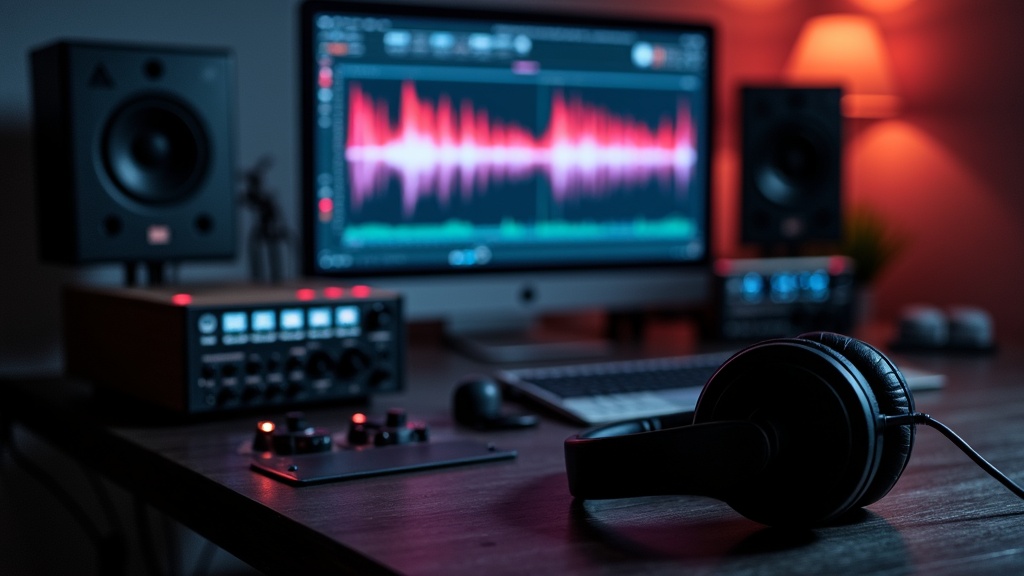
If you’ve ever made a vlog, you probably know how much a good voiceover can give your video’s personality and clarity a boost. Clean, well-timed narration keeps viewers engaged, makes editing easier, and gives your content a prolevel feel. Figuring out how to get your voiceover to sound sharp and polished isn’t just about pressing record and hoping for the best. Here’s a simple guide for editing voiceovers for vlogs, especially if you’re fairly new to video editing.
Why Voiceover Editing Matters for Vlogs
Clear narration helps your story flow, keeps your audience focused, and ties together the visuals. A voiceover isn’t just for explaining things; it can bring out your personality, add humor, or create atmosphere. Messy audio filled with background noise or awkward timing can distract from your message. Solid voiceover editing smooths out those bumps and takes your whole vlog up a notch.
With the rise of content creation, highquality audio stands out more than ever. Stats show viewers are a lot more likely to stay through a video with crisp voiceover than one with muddy or noisy narration. Plenty of top vloggers put in a lot of time making sure their narration is spot on. The editing process can actually make or break that pro-level impression you want your audience to get.
Get Set Up and What You Need for Voiceover Editing
Starting with the right setup saves headaches later on. Here’s what I use and recommend when prepping to edit vlog voiceovers:
- Microphone: Even a simple USB mic sounds way better than built-in laptop microphones. Lavalier mics are a good onthego option, while condenser mics work well if you have a quiet spot for recording.
- Audio Editing Software: There are free tools like Audacity and GarageBand, and paid options like Adobe Audition or Logic Pro X. These let you cut, clean, and step up your audio easily.
- Headphones: Quality headphones help you catch little details you’d miss on speakers, especially background hiss or awkward cuts.
- Pop Filter or Windscreen: These stop those harsh “P” and “S” sounds from making your voiceover sound rough and spiky.
Recording in a quiet room is a big win. Layers of soft furnishings—think curtains, cushions, and even rugs—help reduce echo and make your voiceover sound less boxy and more natural.
Step-by-Step. Editing Voiceover for Vlogs Made Simple
Editing can seem tricky if you’re new, but it actually boils down to a handful of repeatable steps. Here’s how I approach the process each time:
- Import Your Tracks: Load up your voiceover and video files in your audio or video editing software. Place the voiceover on its own track. Most programs let you drag and drop, making this step very direct.
- Clean Up Background Noise: Listen with headphones for any hum, hiss, or background chatter. Use a noise reduction effect or equalizer to sweep out unwanted sounds. Many programs have an automatic noise cleaning tool worth checking out.
- Trim Out Mistakes and Pauses: Cut out dead air, coughs, or restarts in your speech. I usually zoom in on the timeline to snip tiny gaps for a smoother flow. This step also helps with awkward pacing.
- Match Voiceover to Video: Drag sections of your narration to line up with action on screen. Sometimes you’ll need to split a single voiceover take into chunks and rearrange it for the perfect match with your visuals.
- Adjust Volume Levels: Keep your voiceover loud enough to stand out over music and background sounds, but not so loud that it distorts. Most editors provide a volume meter, which you can watch as you play back the timeline.
- Step Up With Effects (Optional): Light compression or a touch of EQ can make your voice fuller and clearer. Keep it subtle; for vlogs, natural-sounding settings usually work best.
Even basic edits can make a world of difference. With practice, these steps get much quicker and will just be part of your normal workflow.
What to Watch Out For. Common Voiceover Hurdles
Running into issues can be frustrating, but knowing where things usually go wrong gives you a big head start. Here are the main hiccups I see when editing vlog voiceovers:
- Background Noise: Things like traffic, AC units, or computer fans can sneak onto your audio track—so record in the quietest spot you have. Most editing tools have noise filters, but starting with clean audio saves lots of time.
- Popping and Sibilance: Strong “P” and “S” sounds can spike your audio. Using a pop filter in recording makes a surprising difference. You can also smooth these in editing with a deesser effect.
- Mismatched Levels: If your narration swings from quiet to loud, gently compress or adjust gain on individual bits to keep things steady and even.
- Off Timing: Sometimes your narration and video events just don’t match up. Splitting the audio at natural pauses and shifting parts around helps you nail the pacing.
Background Noise
Noise in the background is something that often sneaks in, especially if you’re recording at home or outside. I usually check for faint hums or buzzes right from the start. If I find anything, I use my noise reduction tool immediately, making the editing process way less tedious.
Popping and Sibilance
Harsh syllables, especially “P,” “B,” and “S” sounds, can get pretty distracting. When I pick up on them, I’ll use a deesser plug-in, or sometimes manually cut the peaks off the waveforms if there aren’t too many.
Mismatched Levels and Timing
If your volume jumps up and down, a little gain adjustment and gentle compression will keep things steady. If the narration’s timing feels off, try moving clips on the timeline so your words line up with the key moments you want to highlight visually.
Pro Tips for NextLevel Voiceover Edits
Once you’ve nailed the basics, a few small tweaks can set your vlog’s sound apart. Here are some of my go-to suggestions:
Layer Subtle Ambience: Adding quiet background sound or gentle music can fill silence and create atmosphere, as long as it doesn’t overpower your narration.
Try Out EQ: I like to cut out low-end rumble and boost the upper mids a bit to help the voice pop. Every voice is different though, so always listen back and tweak to taste.
Consistent Naming and Organization: Naming each clip and keeping voiceover takes in organized folders will save you when you need to go back and edit an older project.
Use Markers: Most editors let you drop markers on your timeline to flag where key lines or sections start. These help you get effects and pacing just right.
Trying out new tools and editing styles is all part of the adventure. Free programs are fine for most beginners—you can always upgrade if you find you need more features.
Equipment to Give Your Voiceover Workflow a Boost
Some basic gear can make your editing much smoother. Here’s what I use to step up my process:
- Shock Mount: Keeps vibrations from your desk or stand from creeping into your audio.
- Audio Interface: For those using XLR mics, an interface can give you better quality and lets you adjust levels more precisely.
- Portable Recorder: When shooting on location, a small recorder like a Zoom H1n will give you clearer audio than any camera or phone mic.
These extras are not required if you’re just starting out, but they can cut your editing time and make your voiceover sound more polished the more you work with them.
- Tutorials and Forums: YouTube is packed with practical demos, and forums like Reddit’s r/AudioEditing are full of real-life tips for all levels. Watching how others work can lead you to creative tricks and quick fixes you might never stumble upon on your own.
Frequently Asked Questions
It’s often the little things people get hung up on. Here are some common questions I see:
Question: Which software is best for vlog voiceover editing?
Answer: Beginners will do great with Audacity (it’s free and powerful). Mac fans can use GarageBand. If you’re eyeing more features, Adobe Audition or Reaper go further, but most basics are the same wherever you look.
Question: How can I prevent the voiceover from sounding hollow?
Answer: Stay close to the mic and record in a room with soft furniture or curtains. Use EQ to cut out low-end rumbles and boost clarity. Skip big, empty rooms where sound bounces everywhere.
Question: Should I record voiceovers before or after filming the vlog?
Answer: There’s no rule—some write a full script and record first, then shoot video to match, while others film first and record afterwards, especially for explanatory bits. Try both and see what makes your workflow smoother.
Wrapping Up: Smooth Voiceover Makes a Better Vlog
Great audio helps your vlogs stick in people’s minds and keeps them watching. Editing voiceovers is less about high-tech tricks and more about solid clean-up, good timing, and steady mixing. Spend some time with your editing tools, keep your takes labeled, and keep playing with subtle effects as you get comfortable. Before long, crisp voiceovers will become the backbone of your videos—and your viewers will definitely notice the difference.
The melody maker GPT
Translates text and images into music with download files.

Best of luck with your vlogging journey—you’re going to shine! 🎥✨
best vlogging editing software on amazon
best vlogging microphone on amazon