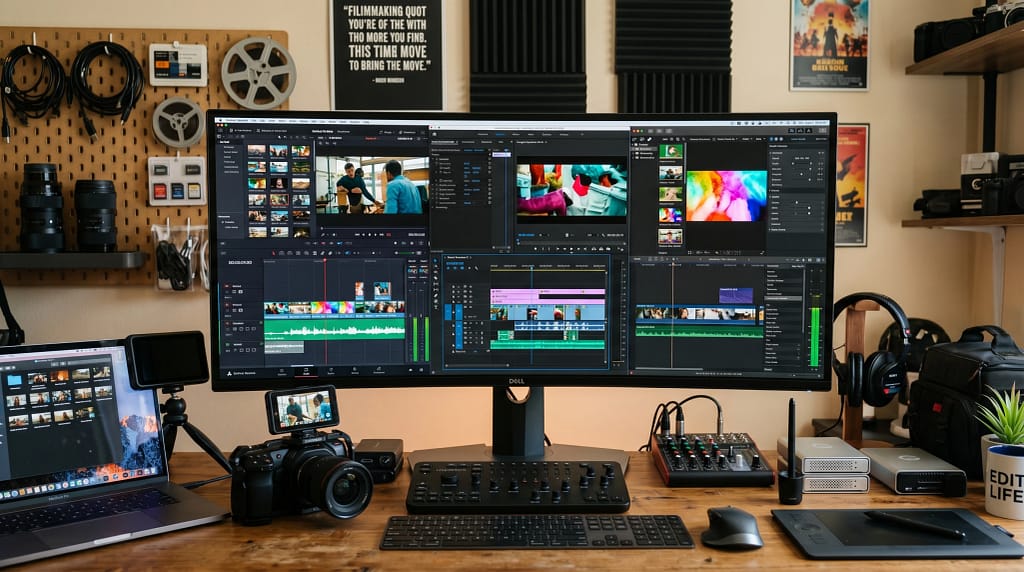
The Best Editing Software For Video Content Creators
Finding the best video editing software is really important for anyone creating content today. High-quality, eye-catching videos make a huge difference, whether you’re sharing on YouTube, Instagram, TikTok, or building a professional portfolio. With so many editing programs out there, picking the right one can feel overwhelming, especially when your needs and skill level play such a big part in what will actually work best for you.
If you’ve ever felt unsure where to start, confused by the features, or worried about monthly subscription costs, you’re definitely not alone. I’ve spent years testing out software for simple social media edits and larger video projects, and I know how much the right tools can help speed up the editing process and make your content stand out.
Today I’m sharing the top editing software options for video creators. This guide breaks down the standout features, ease of use, strengths, drawbacks, and a few helpful tips, so you can pick software that matches your creative style, budget, and goals. No matter if you’re just starting or already have experience, there’s an option here for you.
1. Adobe Premiere Pro = The Go-To For Professionals
Adobe Premiere Pro is one of the most trusted names in video editing. It’s what I use when I need maximum flexibility and need to deliver professionallevel results. The software supports everything from 4K editing to color grading and multicamera projects. I also like that it works well with other Adobe apps, like After Effects for motion graphics or Photoshop for image adjustments.
Main Features:
- Timeline editing with advanced tools for trimming and arranging
- Wide format support, including 4K and VR projects
- Excellent integration with Adobe Creative Cloud
- Automated tools, like Auto Reframe and color matching
While Premiere Pro offers a ton of power, it can take some time to learn if you’re not used to professional software. If you want all the bells and whistles and plan to edit often, the subscription cost is worth it.
Why I Recommend It:
- Ideal for creators with lots of editing needs
- Great for both shortform and longform video projects
- Works on both Mac and PC
2. Final Cut Pro = Top Choice for Mac Users
Final Cut Pro is Apple’s professional video editing software, designed specifically for Mac users. I’ve used it on several projects where speed was important, and the magnetic timeline really makes arranging clips fast and intuitive. It’s packed with features like multicam editing, advanced color grading, and realtime effects.
Key Features:
- High-speed performance, even on large 4K files
- Magnetic Timeline for easy editing
- Advanced audio editing and builtin effects
- Optimized for Macs, especially with Apple Silicon chips
The onetime purchase means no ongoing subscription, which I find super appealing if you don’t want monthly billing. The main drawback is that it’s Maconly, so you can’t use it on Windows or Linux. If you’re already in the Apple ecosystem, this is definitely worth considering.
3. DaVinci Resolve = Versatile and Free To Start
DaVinci Resolve stands out in the video editing space because you get a prolevel editor with a powerful free version. I was pretty amazed at how much you can do without paying a dime; cut and trim, add effects, color grade, and even mix your audio, all without a price tag on the basics.
Standout Tools:
- Professionalgrade color correction and grading
- Fusion tab for visual effects and motion graphics
- Fairlight panel for audio mixing
- Upgrades with DaVinci Resolve Studio add even more tools
Resolve can be resource hungry, so you’ll want a wellequipped computer. The learning curve is noticeable at first, but once you’re used to it, the results look fantastic. It’s one of my top picks for creators on a budget who still want pro features.
4. Wondershare Filmora = Beginner Friendly with Creative Effects
Wondershare Filmora is the software I often recommend to friends who are just getting started. It manages to pack in a lot of editing power without overwhelming you with complicated menus. Drag and drop editing, premade transitions, and a huge library of effects and royaltyfree music all make for a fun experience.
Highlights:
- User interface designed for beginners
- Built in templates and filters
- Direct export to YouTube, Vimeo, and social media
- Works on both Windows and Mac
Filmora does require a payment to remove watermarks, but compared to most pro platforms, it’s fairly affordable. It’s perfect for personal projects, school assignments, or quick social media clips.
5. iMovie = Simple Solution for Mac and iOS
iMovie comes standard on new Macs and is available for free on both macOS and iOS. I still use it when I need to put a video together quickly, like a birthday greeting or recap of a vacation. It’s helpful if you want to create polished videos without getting into layered timelines or technical settings.
Why it Works:
- Straightforward interface with drag and drop editing
- Good selection of titles, transitions, and sound effects
- Easy export to multiple formats and platforms
- Great for those new to editing or who want quick results
While it doesn’t have the advanced features you’ll find in Premiere Pro or Final Cut, it covers all the basics for home videos and simple online content. You can always start here and upgrade later if you want more control.
6. Tips For Picking The Right Editing Software
I always take these points into account before settling on editing software:
- Decide if you need professional tools or simple features based on your projects.
- Check if your computer meets the system requirements for smooth performance.
- Consider your budget, not just initial cost but monthly or yearly fees.
- Look for a trial version to test the workflow and interface.
- Read reviews or watch tutorial videos to get a feel for common challenges.
Sometimes I’ll download two or three programs, try them out on a short video, and see which one fits my editing style best. Comfort matters because you’ll spend a lot of time inside your editor if you make regular videos. Also, be sure to check on compatibility with your footage files and desired output format before committing to any one program.
Another important factor is the community support and available tutorials. Programs like Premiere Pro and Resolve have tons of learning resources, which helps flatten the learning curve. If you’re just starting, these extras can give a boost to your skills faster.
7. Common Questions Video Creators Ask About Editing Software
- What software is best for YouTube? I find Premiere Pro, Final Cut Pro, and DaVinci Resolve all work great since they offer flexibility and good export options for high-quality YouTube videos.
- Is there good free software for beginners? Yes, DaVinci Resolve’s free version and iMovie are both solid choices with plenty of helpful tutorials online.
- How can I edit videos for TikTok or Instagram? Filmora and iMovie both make it easy to format videos vertically and add fun effects for social media, plus they export straight to your phone or computer for quick uploads.
- What do I do if my computer isn’t very powerful? Lightweight editors like Filmora, iMovie, or even older versions of Wondershare Filmora will usually run smoothly on most laptops. For complex editing, you might need to upgrade memory (RAM) or use proxy files in programs like Premiere Pro.
Final Thoughts
Great editing software helps you create more eye-catching content, whether you’re aiming for viral TikToks, cinematic YouTube vlogs, or polished business videos. The options I listed here each offer something unique, so I recommend thinking about your computer, your goals, and your budget. Trying free versions or trials can help you get started without any pressure, and the more you edit, the easier it becomes to learn new tools. The important thing is to pick software that keeps you excited to create and won’t hold you back from improving your videos or growing your audience.
Which editing software will you try for your next project? Share your thoughts or your favorites below. I’m always interested to hear what works for others! And for those seeking extra inspiration, check out online creator communities. Many creators are happy to share workflow tips, custom transitions, or even quick troubleshooting advice—everyone grows together when creators share their knowledge.
The Vlog Script Assistant GPT
I specialize in scripting for vlogs, focusing on simplicity and creativity.